Converting PDF Bank Statements to Excel/CSV
Learn how to convert PDF bank statements to Excel and CSV formats quickly and accurately. Complete guide with best practices for financial data conversion.
Table of Contents
Step-by-Step Guide: Converting PDF Bank Statements to Excel/CSV
Bank statements are essential for accounting, bookkeeping, and financial analysis. Yet, most banks only provide statements in PDF format — a layout designed for reading, not for data processing. Manually copying transactions from a PDF into Excel or CSV is slow, error-prone, and frustrating.
In this guide, we'll walk you step by step through how to convert PDF bank statements to Excel or CSV in the most accurate and secure way. We'll also show how Bank Statement Converter, an AI-powered SaaS tool, eliminates manual entry and delivers ready-to-use data in seconds.
Why Convert PDF Bank Statements into Excel or CSV?
- Streamlined Accounting – Excel and CSV files can be directly imported into accounting software like QuickBooks, Xero, or Sage.
- Data Analysis – Finance teams and small businesses can easily sort, filter, and visualize cash flow trends.
- Time Savings – Automated conversion reduces hours of manual entry.
- Accuracy – AI/OCR technology eliminates human errors that often happen with copy-paste.
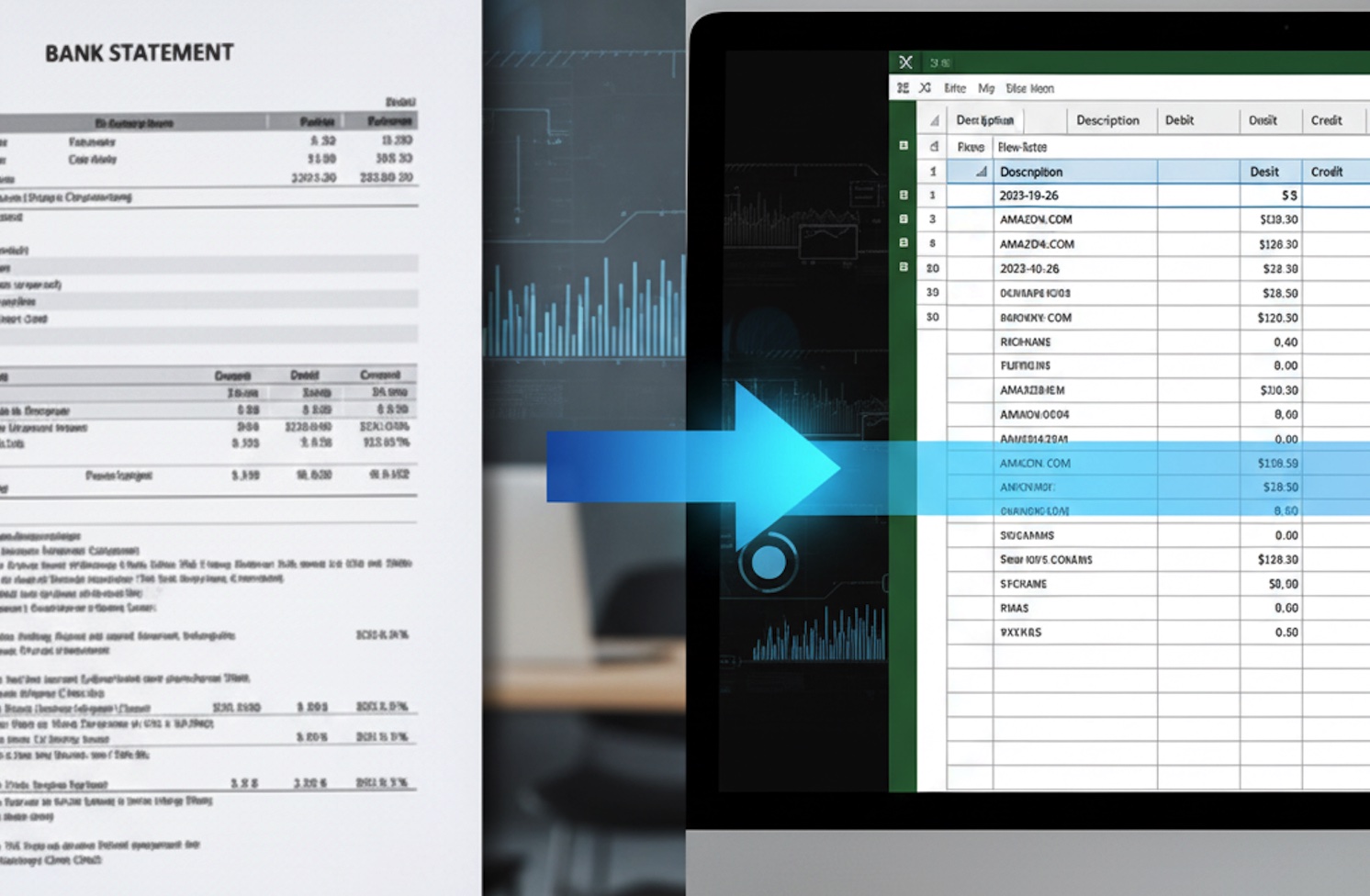
Common Challenges of PDF Bank Statements
- Scanned Images vs. Text PDFs – Some banks generate image-only PDFs. A good converter must use OCR (optical character recognition) to read these.
- Global Bank Formats – Each bank has its own layout; handling thousands of formats is complex.
- Security Concerns – Bank data is highly sensitive, so compliance and encryption are critical.
This is where Bank Statement Converter stands out: it recognizes thousands of global bank statement formats, supports scanned or text PDFs, and ensures GDPR/SOC2 compliance with end-to-end encryption.
Step-by-Step: Converting PDF Bank Statements to Excel/CSV
Step 1: Collect Your Bank Statements
Download your bank statements as PDF files from your online banking portal. If your files are password-protected, keep the password handy.
Step 2: Upload the PDF into Bank Statement Converter
Head over to Bank Statement Converter and upload your PDF file. The tool accepts:
- Scanned PDFs
- Digital/Text PDFs
- Password-protected PDFs
Step 3: AI-Powered Data Extraction
Once uploaded, the AI-powered OCR engine scans the document, recognizes the bank's format, and extracts transactions with 99%+ accuracy.

Step 4: Choose Your Output Format
Select whether you want your data in:
- Excel (XLS/XLSX) – For advanced reporting and analysis.
- CSV – For easy import into accounting tools or databases.
- JSON/QBO – For developer integration or QuickBooks users.
Step 5: Download & Use Your Data
Click "Download" and you're ready to go. Your data is now clean, structured, and ready for:
- Import into QuickBooks, Xero, or Sage
- Upload into ERP systems
- Bulk analysis in Excel or Google Sheets
Advanced Features for Power Users
- Batch Processing – Convert hundreds of PDFs at once.
- API Access – Developers can integrate directly into their apps with webhook support.
- Global Coverage – Thousands of bank formats recognized worldwide.
- Enterprise-Grade Security – GDPR, SOC2, HIPAA compliance, plus data encryption.
Why Choose Bank Statement Converter Over Manual Tools?
| Feature | Manual Copy-Paste | Bank Statement Converter |
|---|---|---|
| Speed | Hours | Seconds |
| Accuracy | Error-prone | 99%+ AI accuracy |
| Security | Risk of mistakes | Encrypted, compliant |
| Scalability | One statement at a time | Batch processing |
| Integrations | None | QuickBooks, Xero, Sage, APIs |
By automating conversions, businesses save time, reduce costs, and eliminate data entry headaches.
Tips for Best Results
- Always download the highest-quality PDF version of your bank statement.
- If scanned, make sure text is legible (not blurry).
- Use batch upload to process multiple months of data together.
- For accountants, integrate directly into QuickBooks or Xero to skip manual imports.
Try It Yourself
Stop wasting time copying transactions line by line. With Bank Statement Converter, you can transform bank statements into Excel or CSV instantly, securely, and at scale.
👉 Start for Free Today – Get 5 free conversions to see the difference.
Conclusion
Converting bank statements from PDF into Excel or CSV is no longer a tedious task. Whether you're an accountant, small business owner, or developer building financial tools, Bank Statement Converter delivers fast, accurate, and secure results.
Take control of your financial data, save hours every month, and let automation handle the hard work.